


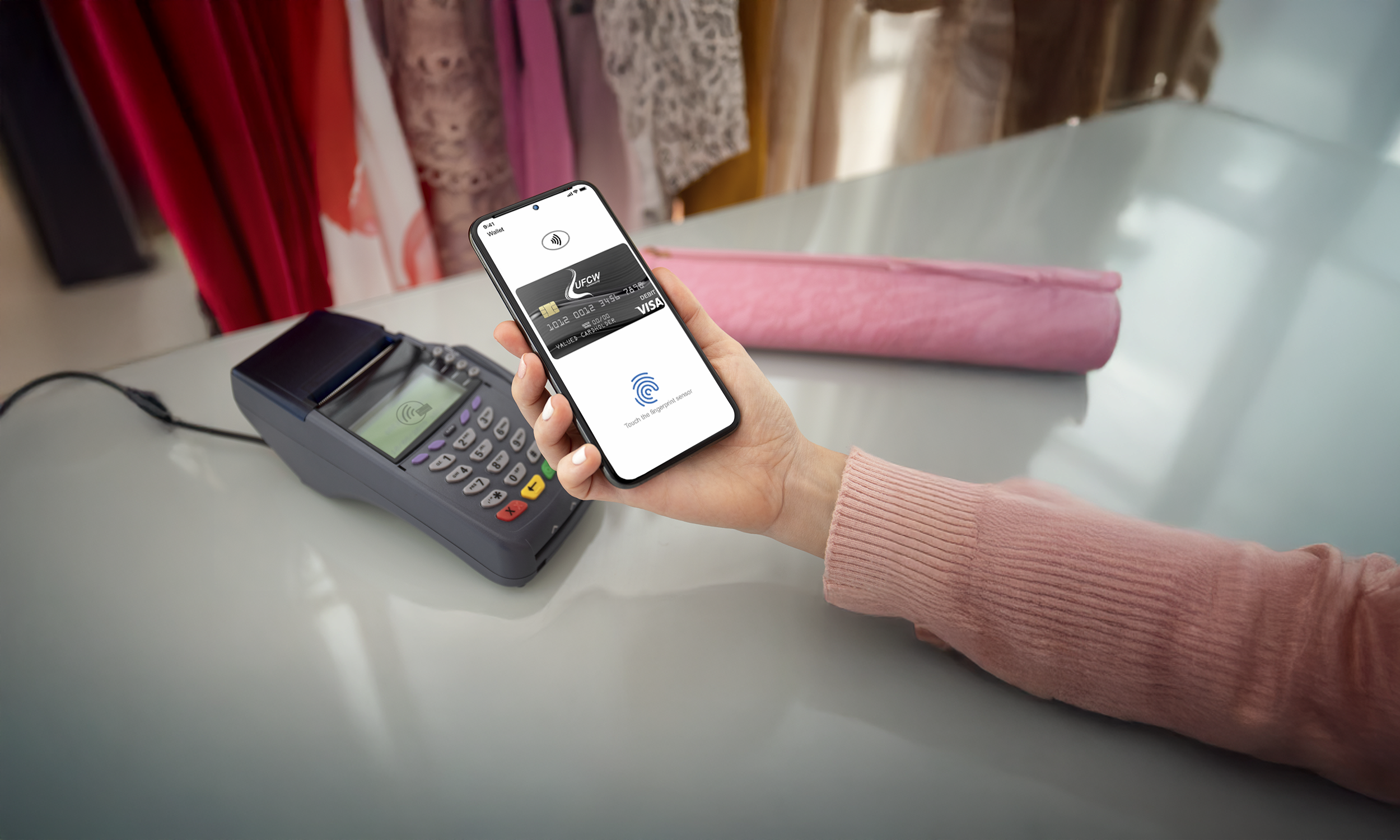
Tap. Pay. Go.
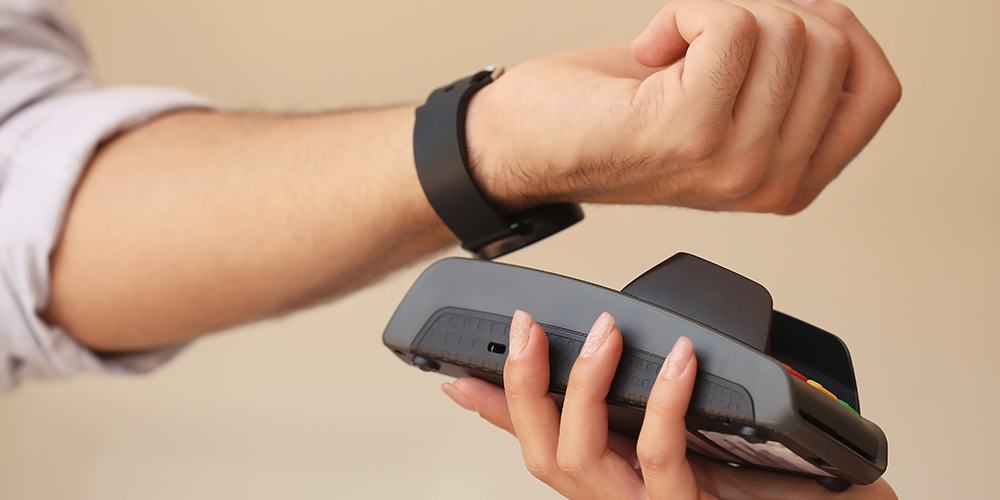
It's time to try a faster, easier and secure way to pay. Make payments using your smartphone or smartwatch without your physical card. Get started by adding your UFCW Community FCU debit card to your preferred digital wallet provider today.




Go digital with your banking
Monitor your accounts, pay bills, check eStatements and more!
Learn how to start taking advantage of contactless spending.
FAQ
Apple Devices - Important Note
If you are experiencing issues with Siri opening instead of Apple Pay when using your shortcut, follow these instructions:
-
If you are double-clicking quickly and Siri is still appearing, your iPhone might not be registering the double-click properly. Slowing down the required click speed can resolve this.
Open the Settings app.
Tap Accessibility, then select Side Button (or Home Button on models with a Home button).
Under "Click Speed", change the setting from Default to Slow or Slowest.
-
Verify that the shortcut for Apple Pay via the side button is active.
Open the Settings app.
Tap Wallet & Apple Pay.
Toggle Double-Click Side Button (or Double-Click Home Button) to the on position.
-
If the above step does not resolve the issue, you can turn off the "Press and Hold" action for Siri, which will ensure that a long press on the side button does not activate the assistant.
Open the Settings app.
Tap Siri & Search.
Toggle Press Side Button for Siri (or Press Home for Siri) to the off position.
After adjusting these settings, double-clicking the side button should reliably bring up your Apple Wallet. If the issue persists, check that you don't have a bulky phone case interfering with the button press.
Keep your device up to date.
To ensure the best experience with your digital wallet, make sure your device is running the latest software or firmware version. Updates often include important security enhancements and compatibility fixes. Keeping your device updated helps ensure smooth setup and secure transactions.
-
Check for updates under Settings > General > Software Update.
Visit Apple’s Support Page for more detailed instructions: Update your iPhone or iPad - Apple Support
-
Go to Settings > System > System Update
Visit Google’s Support Page for more detailed instructions: Check & update your Android version - Android Help
-
Navigate to Settings > Software Update
Visit Samsung’s Support Page for more detailed instructions: How to update your Galaxy phone or tablet
-
Use the Garmin Connect app or Garmin Express on your computer to update your device.
Visit Garmin’s Support page for more detailed instructions: Installing the Latest Software On Your Fitness Device | Garmin Customer Support
Enable NFC for Contactless Payments
To use your digital wallet, some devices need Near Field Communication (NFC) manually turned on. NFC allows secure, contactless transactions at checkout. If NFC is off, your device won’t be able to complete contactless payments. Turning it on ensures a smooth experience.
-
NFC is automatically enabled when you use Apple Wallet, no extra steps needed.
-
Go to Settings > Connections > NFC and make sure it’s turned on
Some Google devices require you to make sure Google Wallet is the default NFC Payment App.
Go to NFC Payments in your settings
Tap on Contactless Payments
Tap on Google Wallet
-
Check Settings > Connections > NFC and Payment and enable NFC
-
NFC is built-in and enabled when you set up Garmin Pay.
Issues Adding Your Card?
Follow the device troubleshooting steps below.