


Mobile Banking and Digital Services
Take your credit union wherever you go with our Mobile Banking app. Access your accounts securely from your smartphone or tablet and enjoy convenient tools that help you manage your finances on your schedule.
Get the Mobile Banking App
Getting started is easy. Simply visit the Apple App Store® or Google Play™ Store on your mobile device and search for "UFCW Community FCU" to download our free Mobile Banking app.
Once installed, sign in using your existing Online Banking credentials. New users can enroll in Online Banking directly from our website before logging into the app. Simply click Enroll beneath the login box at the top of our homepage to get started.
Download our free UFCW Community FCU app to:
Check balances and transaction history
Transfer funds between accounts
Pay bills
View loan information
Receive account alerts
Deposit checks remotely
Manage your debit card through CardHub
Download Today
Apple App Store: https://apps.apple.com/us/app/ufcw-community-fcu/id6502665385
Google Play Store: https://play.google.com/store/apps/details?id=com.ufcwcfcu.mobile&pcampaignid=web_share
Deposit Checks From Anywhere
Skip the trip to the branch and deposit checks using your smartphone.
With Mobile Deposit, you can:
Deposit eligible checks anytime
Submit deposits securely through the app
Receive confirmation when your deposit is accepted
Save time and avoid extra trips
Simply sign in to the Mobile Banking app, select Mobile Deposit, and follow the prompts to submit your check.
Manage Your Debit Card with CardHub
CardHub puts powerful card controls right at your fingertips, helping you protect your account and monitor activity in real time.
CardHub Features
Turn your card on or off instantly
Control where your card can be used
Manage online, in-store, and ATM transactions
Set spending limits
Receive real-time alerts
CardHub makes it easy to quickly spot unusual activity and take action whenever needed, giving you greater confidence and control over your accounts.
Tap. Pay. Go.
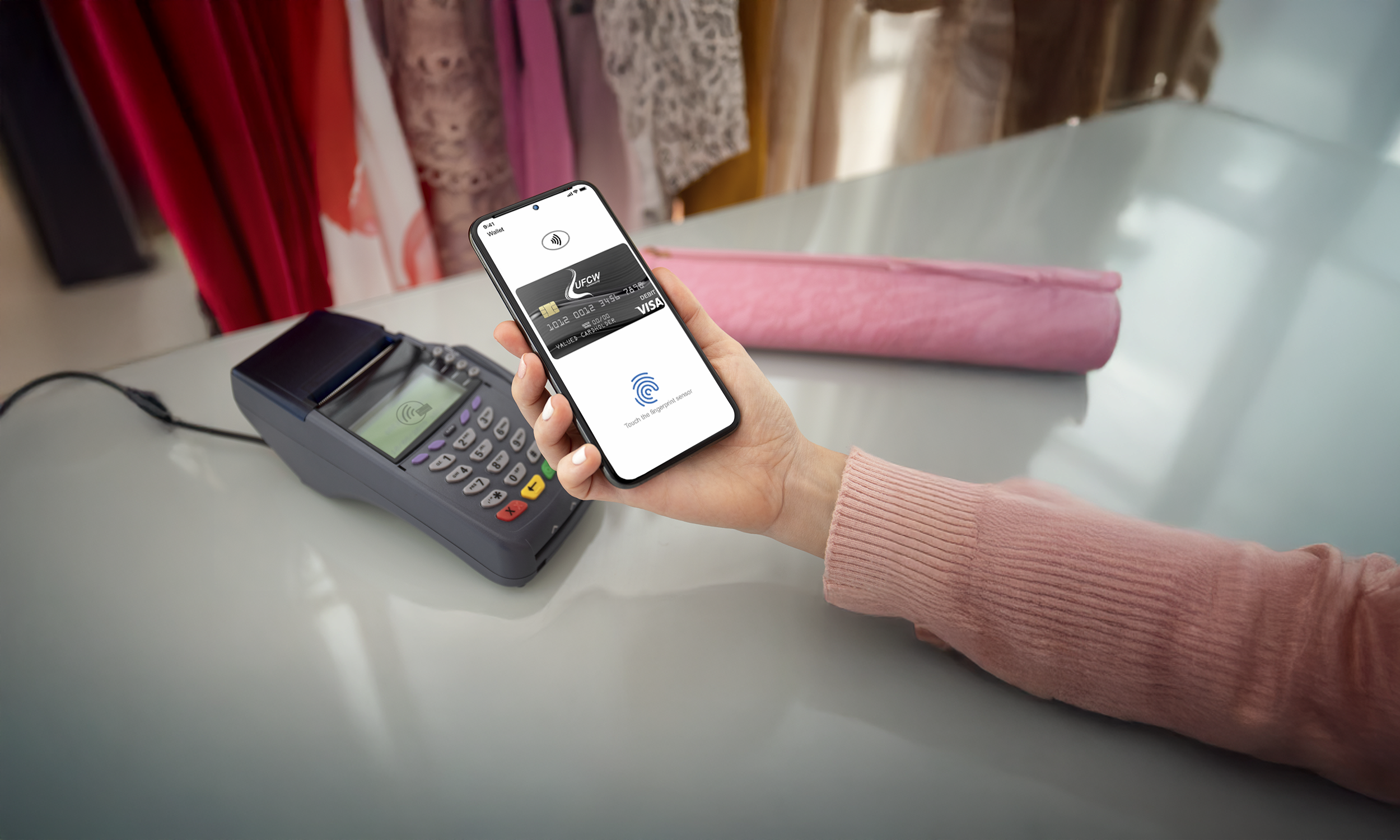
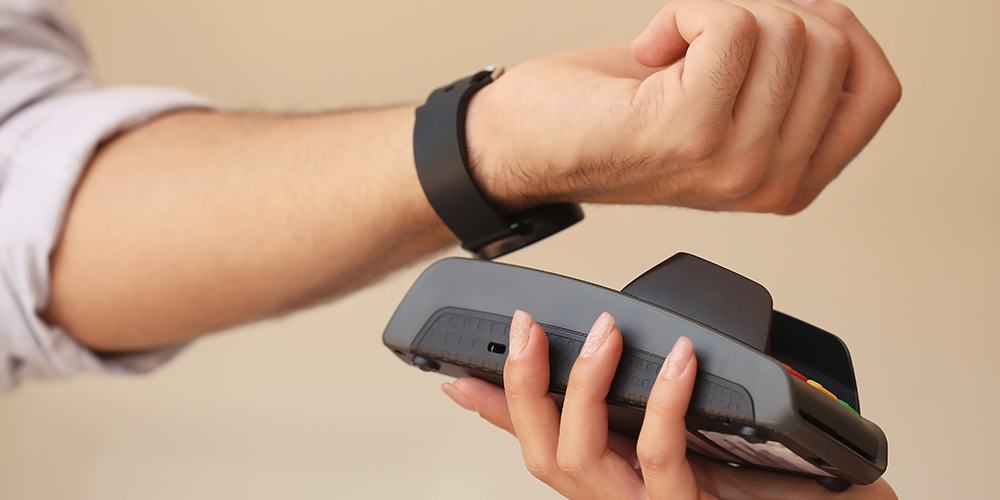
It's time to try a faster, easier and secure way to pay. Make payments using your smartphone or smartwatch without your physical card. Get started by adding your UFCW Community FCU debit card to your preferred digital wallet provider today.




Go digital with your banking
Monitor your accounts, pay bills, check eStatements and more!
Learn how to start taking advantage of contactless spending.
FAQ
Apple Devices - Important Note
If you are experiencing issues with Siri opening instead of Apple Pay when using your shortcut, follow these instructions:
-
If you are double-clicking quickly and Siri is still appearing, your iPhone might not be registering the double-click properly. Slowing down the required click speed can resolve this.
Open the Settings app.
Tap Accessibility, then select Side Button (or Home Button on models with a Home button).
Under "Click Speed", change the setting from Default to Slow or Slowest.
-
Verify that the shortcut for Apple Pay via the side button is active.
Open the Settings app.
Tap Wallet & Apple Pay.
Toggle Double-Click Side Button (or Double-Click Home Button) to the on position.
-
If the above step does not resolve the issue, you can turn off the "Press and Hold" action for Siri, which will ensure that a long press on the side button does not activate the assistant.
Open the Settings app.
Tap Siri & Search.
Toggle Press Side Button for Siri (or Press Home for Siri) to the off position.
After adjusting these settings, double-clicking the side button should reliably bring up your Apple Wallet. If the issue persists, check that you don't have a bulky phone case interfering with the button press.
Keep your device up to date.
To ensure the best experience with your digital wallet, make sure your device is running the latest software or firmware version. Updates often include important security enhancements and compatibility fixes. Keeping your device updated helps ensure smooth setup and secure transactions.
-
Check for updates under Settings > General > Software Update.
Visit Apple’s Support Page for more detailed instructions: Update your iPhone or iPad - Apple Support
-
Go to Settings > System > System Update
Visit Google’s Support Page for more detailed instructions: Check & update your Android version - Android Help
-
Navigate to Settings > Software Update
Visit Samsung’s Support Page for more detailed instructions: How to update your Galaxy phone or tablet
-
Use the Garmin Connect app or Garmin Express on your computer to update your device.
Visit Garmin’s Support page for more detailed instructions: Installing the Latest Software On Your Fitness Device | Garmin Customer Support
Enable NFC for Contactless Payments
To use your digital wallet, some devices need Near Field Communication (NFC) manually turned on. NFC allows secure, contactless transactions at checkout. If NFC is off, your device won’t be able to complete contactless payments. Turning it on ensures a smooth experience.
-
NFC is automatically enabled when you use Apple Wallet, no extra steps needed.
-
Go to Settings > Connections > NFC and make sure it’s turned on
Some Google devices require you to make sure Google Wallet is the default NFC Payment App.
Go to NFC Payments in your settings
Tap on Contactless Payments
Tap on Google Wallet
-
Check Settings > Connections > NFC and Payment and enable NFC
-
NFC is built-in and enabled when you set up Garmin Pay.
Issues Adding Your Card?
Follow the device troubleshooting steps below.